Showing posts with label youtube. Show all posts
Showing posts with label youtube. Show all posts
Sunday, October 25, 2015
YouTube Command Line Player And Downloader `mps-youtube` 0.2.0 Released With Support For Downloading YouTube Playlists, More
mps-youtube is a command line tool that can be used to search, play and download YouTube videos, which supports both local and YouTube playlists.
By default, mps-youtube is basically a YouTube audio player (and downloader), but you can enable external video playback (via mpv or MPlayer) from its options:


Features:
- search and play audio / video from YouTube;
- search tracks of albums by album title;
- search and import YouTube playlists;
- create and save local playlists;
- download audio / video from YouTube, with support for DASH (so it can mux separate audio and video streams - that means it can download 1080p YouTube videos since all 1080p YouTube videos use DASH);
- view video comments;
- works under Linux, Windows and Mac OSX;
- many other small but useful features.
The latest mps-youtube 0.2.0, released today, adds quite a few new features and improvements, such as:
- auto detect terminal size;
- transcode audio to mp3 and other formats (requires ffmpeg or avconv);
- added "da" (download best available audio file) and "dv" (download best available video file) commands to playlist search results;
- added options to download YouTube playlists (use "dapl" for audio and "dvpl" for video) by url or id;
- the progress indicator now works with mpv;
- added option to show system notifications (on Ubuntu, install "libnotify-bin" and enable notifications using "set notifier notify-send");
- Added overwrite true/false option for downloads (skips download if downloaded file already exists);
- added copy to clipboard feature (requires "xclip" from the repositories and "xerox" which you can install via python-pip);
- remux audio downloads for better file compatibility.
Getting started with mps-youtube
To start mps-youtube, use the following command:
mpsytBefore using mps-youtube, let's configure it.
mps-youtube uses mplayer as the default media player but you can change this to mpv by using the following command:
set player mpvBy default, mps-youtube searches for music only. If you want to disable this, use the following command:
set search_music falseAlso, mps-youtube plays just the audio by default so if you wish to enable playing videos (using the player set above), run the command below (once again, after running "mpsyt"):
set show_video trueYou can view all the available configuration options by using the command below:
set
Searching for music / videos using mps-youtube is as easy as adding "." or "/" in front of the search terms (without the quotes). For instance, to search for Led Zeppelin, you can use:
.led zeppelin/led zeppelinYou can navigate to the next / previous page of results by using "n" (next) and "p" (previous).
To play an item, enter its number. You can also play multiple items, for instance, use "1-5" to play items 1 to 5 or "1, 2, 6" to play the first, second and sixth item and so on.

To download an item, use:
d ITEM-NUMBERFor example, to download the 3rd search result, use "d 3" - this displays all the available audio and video formats and lets you choose which to download. You can also download the best audio (use "da ITEM-NUMBER") or best video (use "dv ITEM-NUMBER"). This works for both searches and playlists.
This is just to get you started so for more information on using mps-youtube, type "h" and then "help TOPIC" (where topic is "basic", "search" and so on) as explained in mps-youtube:

Install mps-youtube
Arch Linux users can install the latest mps-youtube via AUR
mps-youtube is available in Ubuntu 14.10 and 15.04 repositories as well as Debian Sid and Jessie however, that's an older version so if you want to install the latest version in Ubuntu, Debian, Linux Mint and so on, you can use PIP:
1. Install Python PIP:
sudo apt-get install python3-pip2. Install mps-youtube using Python PIP:
sudo pip3 install mps-youtube3. You'll also need either mpv or mplayer if you want to play audio or video via mps-youtube.
mpv is available in the official Ubuntu 14.04, 14.10 and 15.04 repositories as well as in Debian Jessie and Sid so to install it, use the following command:
sudo apt-get install mpvOf course, you can also use mplayer, which is available in the official repositories for any Ubuntu / Debian version - install it using the following command:
sudo apt-get install mplayerIf you had mps-youtube installed and you want to upgrade it (or you want to upgrade it later on, when a new version is released), use the following command:
sudo pip3 install mps-youtube --upgradeFor Windows and Mac OS X installation instructions, bug reports and so on, see the mps-youtube GitHub page.

Saturday, October 24, 2015
Multi-Platform youtube-dl GUI: YouTube dlG [Updated]

Youtube-dlG is a multi-platform GUI for the popular command line video download tool `youtube-dl`. The GUI lets you download multiple videos at once, can automatically convert downloaded videos to audio, lets you select the video quality and more.
youtube-dl is a command line video downloader which, despite what its name suggests, supports downloading videos from hundreds of websites, it can extract the audio automatically, supports downloading playlists, downloading and embedding subtitles into videos and much more.
Youtube-dlG features:
- download videos from all websites supported by youtube-dl;
- supports downloading multiple videos in the same time;
- can automatically convert downloaded video to audio (with format and quality options);
- supports Youtube DASH videos (it automatically downloads both audio and video and merges the two; optionally, it can remove the audio only and video only files)
- lets you select the video format;
- playlist options: you can enter the first and last video in the playlist you want to download as well as the maximum number of files to download from a playlist;
- subtitles: can download all available subtitles, write subtitles to videos, lets you select the subtitles language;
- options to write description to file, write thumbnails to disk, limit download speed and min/max file size, etc.;
- supports settings the user agent, referrer, login to download video, proxy support;
- automatically downloads youtube-dl and keeps it updated;
- supports specifying command line arguments that are passed to youtube-dl.
Youtube-dlG (or youtube-dl-gui) doesn't offer access to all the youtube-dl features (there are so many, it's almost impossible - I'd say -, to fit them all into a single UI) but it does offer access to most basic features which should be enough for most users.
Here are a few more screenshots with some of the options available in Youtube-dlG:


By default, the videos are downloaded in your home folder but you can change that from the application options.
It's important to not that selecting "highest available" in the Youtube-dl-gui video options, the application will download the highest available video format that's not DASH, which usually means 720p. If you want to download 1080p Youtube videos, select "mp4 1080p(DASH)" and make sure to also select "DASH m4a audio 128k" under "Dash audio".
It's important to not that selecting "highest available" in the Youtube-dl-gui video options, the application will download the highest available video format that's not DASH, which usually means 720p. If you want to download 1080p Youtube videos, select "mp4 1080p(DASH)" and make sure to also select "DASH m4a audio 128k" under "Dash audio".
Install Youtube dlG (youtube-dl-gui) in Ubuntu
Youtube dlG (youtube-dl-gui) is available in the main failsdownloads PPA. To install it in Ubuntu, Linux Mint and other Ubuntu-based Linux distributions, use the following commands:
sudo add-apt-repository ppa:nilarimogard/failsdownloads
sudo apt-get update
sudo apt-get install youtube-dlg
If you don't want to add our PPA, you can download the deb from HERE and install it manually.
Once installed, launch "YouTube DL GUI" from the menu / Unity Dash.
Arch Linux users can install Youtube dlG via AUR.
To download the source code, Windows binaries, report bugs, etc., see the youtube-dl-gui GitHub page.
YouTube Viewer: A Complete YouTube Client For Linux [Ubuntu PPA]
YouTube Viewer is an application written in Perl that can be used to search, play and download YouTube videos.
The app ships with two interfaces: GTK2 and comamnd line and it offers a wide range of features, like an advanced search, browsing YouTube categories, view your subscriptions, favorites or recommended videos, view complete video information (including comments, upvotes/downvotes, video category and so on and allows posting comments from the app) and more.
The app ships with two interfaces: GTK2 and comamnd line and it offers a wide range of features, like an advanced search, browsing YouTube categories, view your subscriptions, favorites or recommended videos, view complete video information (including comments, upvotes/downvotes, video category and so on and allows posting comments from the app) and more.

YouTube Viewer features:
- GTK2 and command line interfaces;
- search, play and download YouTube videos;
- supported external players: mplayer (and mplayer2), mpv, vlc and SMPlayer (for a complete GUI for mpv/mplayer) and you can add more in the configuration file;
- displays complete video information: video length, number of views, upvotes/downvotes, uploader, video category and upload date;
- you can see video comments, add a comment, rate a video, add it to favorites and so on, directly from YouTube Viewer;
- log in to your YouTube account and see your subscriptions, favorites, recommended videos and watch history;
- advanced YouTube search: you can choose to search for videos, channels or playlists, sort search results by relevance, rating, view count or date published as well as upload date (all time, this month, this week or today), search by video duration and so on, with configurable results per page;
- list the latest videos uploaded or favorited by a user, list playlists created by a user or subscription videos for a username;
- browse YouTube videos by categories or tops (top rated, top favorites, most shared, most popular, etc.);
- supports entering a YouTube video URL in the search field to play that video;
- more.
YouTube Viewer is a great application that supports pretty much everything you can do directly on the YouTube website (well, without uploading or editing videos), but it lacks a pretty important feature: it can't play 1080p videos. That's because YouTube now uses DASH for 1080p videos, with separate audio and video streams, which is not supported by YouTube Viewer for now. Update: the application can now play 1080p videos but for some reason it can't download them so the best downloaded video quality continues to be 720p.
Also, the UI could use some improvements, especially the Preferences dialog, which currently displays the options available in the configuration file as plain text:

Here are a few more YouTube Viewer screenshots:


The command line interface comes with pretty much the same features as the GUI and is very easy to use - type "youtube-viewer" in a terminal, then type ":h" to see all the available options (you can also use "youtube-viewer --help" to achieve the same thing):


Note that the command line and GTK interfaces don't use the same settings. To configure the command line YouTube Viewer interface, edit the "youtube-viewer.conf" file located under ~/.config/youtube-viewer (run "youtube-viewer" once so the file is created).
Important: in my test, YouTube Viewer didn't work properly with VLC and using it with mplayer may result in some videos not working (due to the videos using an encrypted signature), so for best results, use this application with mpv. To set YouTube Viewer to use mpv as the video player, from its menu select Preferences and change the "video_player_selected" value to "mpv".
Install YouTube Viewer in Ubuntu 15.04, 14.10 and 14.04 Or Linux Mint 17.1 and 17
1. Install mpv
Like I said above, even though YouTube Viewer supports multiple video players, right now it only works properly with mpv or at least that was the case in my test. To install mpv in Ubuntu 15.04, 14.10 or 14.04 / Linux Mint 17.1 or 17, simply use the following command:
sudo apt-get install mpv2. Install YouTube Viewer
To make it easier to install, I've uploaded the latest YouTube Viewer from GIT to the main failsdownloads PPA, for Ubuntu 15.04, 14.10 and 14.04 / Linux Mint 17.1 and 17. Add the PPA and install YouTube Viewer using the following commands:
sudo add-apt-repository ppa:nilarimogard/failsdownloads
sudo apt-get update
sudo apt-get install youtube-viewer
Arch Linux users can install YouTube Viewer (GIT) via AUR: cli | gtk
For other Linux distributions, see the YouTube Viewer Google Code and GitHub pages.
Report any issues you may find @ GitHub.
Thanks to Hund for the tip!
Monday, October 19, 2015
Video Downloader `youtube-dl` Gets Support For Separate Audio And Video YouTube DASH Streams
YouTube uses Dynamic Adaptive Streaming over HTTP (DASH) for delivering videos and along with that, it serves the audio and video in two separate streams for some resolutions/formats. For instance, resolutions like 1080p and 480p are available only with separate audio and video streams.
youtube-dl, a popular command line tool for downloading videos from YouTube and other similar websites, was updated recently with proper support for DASH and separate audio and video streams: the tool can now automatically combine / merge / multiplex the audio and video formats offered by YouTube.
Here's an example via cynic.cc for downloading separate audio and video streams from YouTube and combining them automatically using youtube-dl (which uses ffmpeg or avconv under the hood):
"Now, if you want a 480p video in H.264 format, High profile, with 128kbps AAC audio (this used to be Youtube's format 35), you can specify format -f 135+140 on the command-line and it will download both the audio, the video and multiplex it with ffmpeg (or avconv, depending on what you have installed)."
And that's not all, a lot of other improvements and fixes are added daily to this command line download tool.
For instance, since our previous article about youtube-dl, the downloader received support for many websites, including: Vevo, 9gag, discovery.com, vk.com, southpark.de, myspace.com, vube.com, vesti.ru, stream.cz, ndr.de, onf.ca, Dropbox and so on, along with many fixes and improvements.
For those not familiar with youtube-dl, this command line video downloader not only supports hundreds of websites, but it can also extract the audio automatically, download playlists, download and embed subtitles into videos and more.
Install youtube-dl in Ubuntu
The latest youtube-dl 2014.02.17 is available in the Ubuntu 14.04 Trusty Tahr repository but it wasn't backported for older Ubuntu versions. Install it via Ubuntu Software Center or by using the following command:
sudo apt-get install youtube-dlFor older Ubuntu versions (though I also recommend it for Ubuntu 14.04), you can install youtube-dl by using the main failsdownloads PPA.
As a reminder, I update youtube-dl from the failsdownloads PPA a few times a week, so if YouTube or another website make changes that break it, run an update and it's very likely that a new youtube-dl version will be available, which fixes the issues.
To add the main failsdownloads PPA and install youtube-dl in Ubuntu and derivatives (Linux Mint, elementary OS and so on), use the following commands:
sudo add-apt-repository ppa:nilarimogard/failsdownloads
sudo apt-get update
sudo apt-get install youtube-dl
If you don't want to add our PPA, you can manually download the deb from the PPA by visiting THIS link.
For other Linux distributions, you'll find installation instructions HERE.
Using youtube-dl to download videos
To download a video, simply use the following command:
youtube-dl http://VIDEO_URLIf you don't use any parameters, youtube-dl tries to download the best format. For YouTube, by default it downloads the best non-DASH format, which usually is 720p mp4 for YouTube.
So here's how to download 1080p YouTube videos using youtube-dl:
How to download 1080p YouTube videos using youtube-dl
1. Firstly, get a list of formats. I'll use a random video link as an example below:
youtube-dl -F http://www.youtube.com/watch?v=3JZ_D3ELwOQThis will list all the available formats:
youtube-dl -F http://www.youtube.com/watch?v=3JZ_D3ELwOQ
[youtube] Setting language
[youtube] 3JZ_D3ELwOQ: Downloading webpage
[youtube] 3JZ_D3ELwOQ: Downloading video info webpage
[youtube] 3JZ_D3ELwOQ: Extracting video information
[info] Available formats for 3JZ_D3ELwOQ:
format code extension resolution  note
171         webm      audio only  DASH webm audio , audio@ 48k (worst)
140         m4a       audio only  DASH audio , audio@128k
160         mp4       192p        DASH video
133         mp4       240p        DASH video
134         mp4       360p        DASH video
135         mp4       480p        DASH video
136         mp4       720p        DASH video
137         mp4       1080p       DASH video
17          3gp       176x144
36          3gp       320x240
5           flv       400x240
43          webm      640x360
18          mp4       640x360
22          mp4       1280x720    (best)
2. To get the best video quality (1080p DASH - format "137") and best audio quality (DASH audio - format "140"), you must use the following command:
youtube-dl -f 137+140 http://www.youtube.com/watch?v=3JZ_D3ELwOQ"-f 137+140" specifies the format: 137 (which means mp4 1080p as you can see above) for video and 140 (which means m4a audio@128k) for audio, as displayed by the command under step 1.

To see all the available options (extract audio, choose a different video quality, download a video playlist and many many other options), type the following commands in a terminal: "man youtube-dl" or "youtube-dl -h".
Sunday, October 18, 2015
PPA Updates: Atraci 0.6.0, Atom 0.123.0, Brackets 0.42, GPaste 3.10.3 And 3.12.2, Minitube 2.2, Oracle JDK 7u67 And More
As you might have noticed, I was on holiday* until today and because of that, there were no new articles on failsdownloads and no updates for the failsdownloads PPAs. Today I updated the PPA packages for most applications that had a new release while I was away, and to speed things up, below you'll find a quick list with what was updated / what's new.
Notes:
- there are no installation instructions in the article for the apps below. Instead, you'll find links to articles explaining how to install those applications in Ubuntu / Linux Mint.
- as a reminder, only Ubuntu 14.04 and 12.04 are still supported by Canonical (and of course, 14.10, which is currently under development) / Linux Mint 17 Qiana and Linux Mint 13 Maya. Launchpad PPAs don't support other Ubuntu / Linux Mint releases any more.
That said, let's proceed with the updates.

Atom 0.123.0, an open source "hackable text editor for the 21st Century" developed by GitHub, which is currently in beta:
- The maximized state of the window is now properly restored on launch;
- The language-mustache package is now bundled by default;
- Added a button to the Incompatible Packages view that reloads Atom and rechecks all the installed packages for compatibility. This is also available from the command palette;
- Atom's Chrome version has been upgraded from 31 to 36;
- Atom's Node version has been upgraded from 0.11.10 to 0.11.13;
- Support for number pad keybindings have been removed. Number pad keys will now resolve to their equivalent keystroke as if they were pressed on the main keyboard area. You should remove the num- modifier from any keystrokes in your ~/.atom/keymap.cson file;
- Fixed an issue on Linux where tabs could not be dragged between windows;
- You can now delete a bracket and its matching pair at the same time using ctrl-backspace on Mac and alt-ctrl-backspace on Linux and Windows;
- ctrl-shift-Z is now mapped to core:redo on Linux;
- Atom now ships with a light version of the Base16 Tomorrow syntax theme;
- Added a bunch of new Go snippets;
- Many other new features and bug fixes, check the changelog below for details.
Changelog | Article on failsdownloads: Install Atom Text Editor In Ubuntu Via PPA [32bit + 64bit]

Atraci 0.6.0, a new open source music player which uses YouTube as a source:
- fixed YouTube decipher issues;
- added support for multimedia keys;
- shows featured playlist if you live in Taiwan & USA;
- added option to open song in YouTube;
- many bug fixes.
Changelog | Article on failsdownloads: Atraci: New YouTube-Based Music Player

Brackets 0.42, an open-source code editor for web design and development built on top of web technologies such as HTML, CSS and JavaScript:
- Theme support: Brackets now has built-in support for editor themes, and includes default light and dark themes. Additional themes can be installed via Extension Manager;
- Replace in Files: Check/Uncheck All Matches for a File: When doing a batch or multi-file replace, you can now check/uncheck the matches for an entire file;
- Change Language Mode: Change the language mode for an individual file by selecting the language from the dropdown menu in the status bar
- Turn off Code Hints: New preferences to disable all code hints or hints from an individual provider;
- Drag and Drop Installation of Extensions: Install extensions by dragging zip files onto the Extension Manager dialog.
Changelog | Article on failsdownloads: Install Brackets In Ubuntu Via PPA (Open Source Code Editor For HTML, CSS And JavaScript)

GPaste 3.12.2 (for GNOME 3.12 / Ubuntu 14.10 only) and 3.10.3 (for GNOME 3.10 / Ubuntu 14.04), a clipboard manager which was initially created for GNOME Shell, but which now also ships with an Ubuntu AppIndicator:
- Desktop files have been fixed;
- Fixes for the ubuntu app-indicator;
- Keybinding to mark an item as being a password;
- Misc bugfixes.
Changelog | Article on failsdownloads: Install GPaste In Ubuntu Via PPA (Native GNOME Shell Clipboard Manager)

Minitube 2.2, a native YouTube client for the desktop:
- Subscriptions context menu: Unsubscribe, Mark as Watched;
- Added --stop-after-this command line switch;
- Added Stop After This Video Unity & Gnome 3 action;
- Fixed painting errors when scrolling playlist on Linux;
- Fixed bug with dragging playlist items from the thumbnail;
- Fixed some videos not playing.
Changelog not available | Article on failsdownloads
Oracle JDK 7u67: according to the release notes, this update includes only a bug fix for a regression - java_arguments not accepted after update to 7u65.
Changelog | Article on failsdownloads: Install Oracle Java 7 in Ubuntu via PPA Repository

Y PPA Manager 2014.08.18: the search feature stopped working while I was on holiday due to a change in Launchpad.net's code. This issue was fixed with the update released today.
No changelog available | Article on failsdownloads
Other packages from the failsdownloads PPAs updated today include: FreshPlayer Plugin (Git pull), Tor Browser 3.6.4, KKEdit 0.2.2, Wimlib 1.7.1 and youtube-dl 2014.08.10.
* In case you're wondering why I didn't announce that I'm on holiday well, that's because I did that a while back and the website was filled with spam comments and also, the number of attempts to hack my online accounts increased considerably. That's why I stopped announcing it publicly. Sorry about that!
Saturday, October 17, 2015
Atraci: New YouTube-Based Music Player
Atraci is a new open source music player which uses YouTube as a source. The app supports creating playlists and comes with some basic features like repeat, shuffle and so on.

The application, available for Linux, Windows and Mac, uses an interface somewhat similar to Popcorn Time (built using Node.js) and, according to its homepage, it allows you to listen to more than 60 million songs, "100% Free. No Ads. No Sign up. And Legal".
 |
| A playlist in Atraci |
Here's how it works: when searching, Atraci uses iTunes, Last.fm and SoundCloud to display song results which include the album cover, the song title and artist. For playback, the application uses YouTube to "stream the highest quality videos", at least that's what the application GitHub page says but from my test, I can tell you that the app doesn't seem to be able to play 1080p videos, most probably because YouTube uses DASH for all 1080p videos.
Atraci supports playing videos however, because it was created to be used as a music player, it lacks some features when it comes to videos: you can't select the video quality and you can't play full-screen videos (but you can maximize the player window):

Atraci features:
- play more than 60 million tracks / videos
- top tracks, featured artist sections
- supports playlists with shuffle and repeat options
- track search autocomplete
- 2 views which support sorting by track or artist
- history of recently played tracks
The application is about one month old, so there are many things which can be improved or added. Its roadmap page links to a list of open bugs which includes some interesting feature requests like a recommendation system, lyrics support, an option to get the current playing song url, proxy support, last.fm/libre.fm scrobbling support and more - hopefully at least some of these will be added in future releases.
Install Atraci in Ubuntu / Linux Mint
Note: the application uses Node.js and Launchpad doesn't support building such packages, so the PPA package downloads and installs the latest Atraci binary from GitHub.
Ubuntu (and derivatives) / Linux Mint users can install Atraci by using the failsdownloads Atraci PPA. To add the PPA and install the application, use the following commands:
sudo add-apt-repository ppa:failsdownloadsteam/atraci
sudo apt-get update
sudo apt-get install atraci
For other Linux distributions (for Ubuntu as well, if you don't want to use the PPA above), Windows or Mac OS X, download Atraci from GitHub.
To run it on Linux, extract the downloaded archive, make the "Atraci" file executable (in Nautilus / Nemo: right click the file, select "Properties" and on the "Permissions" tab, enable "Allow executing file as program") and double click it.
Report any bugs related to the packaging in the comments below or, if you encounter bugs related to the application, report them @ GitHub.
For a somewhat similar application, but for the command line, see: New Command Line YouTube Player And Downloader With Local Playlists Support: mps-youtube
Thanks to Daniel for the tip!
Command Line YouTube Player `mps-youtube` Sees New Release(s)
mps-youtube was updated to version 0.2.2 (and shortly after to 0.2.3) recently, bringing some interesting new features, like an option to use an external application for downloading YouTube videos, metadata tagging of downloaded audio files and more.

mps-youtube is a a command line tool to search, play and download YouTube videos, which supports both local and YouTube playlists.
By default, mps-youtube is basically a YouTube audio player, but it can also serve as a YouTube video player (and downloader), by enabling external video playback (officially, it supports mpv and mplayer for video playback) from its options.
What makes mps-youtube special is the easy to use command line interface, the integrated YouTube search and the ability to download and play only the audio stream, great for those with limited data plans. Here's a list of the most important mps-youtube features:
- search and play audio / video from YouTube;
- search tracks of albums by album title;
- search and import YouTube playlists;
- create and save local playlists;
- download audio / video from YouTube, including option to download full YouTube playlists, with support for DASH (so it can mux separate audio and video streams - that means it can download 1080p YouTube videos since all 1080p YouTube videos use DASH) - requires avconv or ffmpeg;
- transcode audio to mp3 and other formats (requires ffmpeg or avconv);
- system notifications;
- view video comments;
- works under Linux, Windows and Mac OSX;
- many other small but useful features.
Now back to mps-youtube 0.2.2 (and 0.2.3, which was released shortly after 0.2.2). Probably the most important new feature is the addition of an option which allows setting an external application for downloading YouTube audio/video. This means you can use something like aria2, which supports multiple connections.
To set mps-youtube to use aria2, firstly make sure aria2 is installed:
sudo apt-get install aria2set download_command aria2c --dir=%d --out=%f %uset download_command aria2c -s4 -x4 --dir=%d --out=%f %uIt's important to mention that using an external download command does not support (at least for now) transcoding the downloaded file to another format directly from mps-youtube.
Other changes in mps-youtube 0.2.2 and 0.2.3:
- implemented skip to previous track. Use > and < keys for next and previous track, q for quit (was ctrl-c). mpv / mplayer input.conf can be imported to use custom keymappings;
- implemented metadata tagging of downloaded audio files (requires ffmpeg or avconv). This feature is not complete and currently, it uses the YouTube video title as metadata;
- the stream quality is now displayed in the status line;
- fixed progress bar for mpv 0.7;
- fixed YouTube comments overshoot window size;
- fixed issue with audio remux when using d download command;
- fixed issue with "set" command.
Install mps-youtube
Arch Linux users can install the latest mps-youtube via AUR.
mps-youtube is available in Ubuntu 14.10 and 15.04 repositories as well as Debian Sid and Jessie however, that's an older version so if you want to install the latest version in Ubuntu, Debian, Linux Mint and so on, you can use PIP:
1. Install Python PIP (requires Python 3):
sudo apt-get install python3-pip2. Install mps-youtube using Python PIP:
sudo pip3 install mps-youtube3. You'll also need either mpv or mplayer(2) if you want to play audio or video via mps-youtube.
mpv is available in the official Ubuntu 14.04, 14.10 and 15.04 repositories as well as in Debian Jessie and Sid so to install it, use the following command:
sudo apt-get install mpvThe mpv version in Ubuntu is pretty old so if you want to install a newer version, you can use Doug McMahon's mpv PPA.
Of course, you can also use mplayer2, which is available in the official repositories for any Ubuntu / Debian version - install it using the following command:
Of course, you can also use mplayer2, which is available in the official repositories for any Ubuntu / Debian version - install it using the following command:
sudo apt-get install mplayer2If you had mps-youtube installed and you want to upgrade it (or you want to upgrade it later on, when a new version is released), use the following command:
sudo pip3 install mps-youtube --upgradeFor Windows and Mac OS X installation instructions, bug reports and so on, see the mps-youtube GitHub page.
Configuring and using mps-youtube
To start mps-youtube, use the following command:
mpsytBefore using mps-youtube, you'll need to configure it, in case you won't like the defaults.
mps-youtube 0.2.3 uses mpv as the default media player but you can change this to mplayer2 by using the following command:
set player mplayerBy default, mps-youtube searches for music only. If you want to disable this, use the following command:
set search_music falseAlso, mps-youtube plays only the audio by default so if you wish to enable playing videos (using the player set above), run the command below (once again, after running "mpsyt"):
set show_video trueYou can view all the available configuration options by using the command below:
set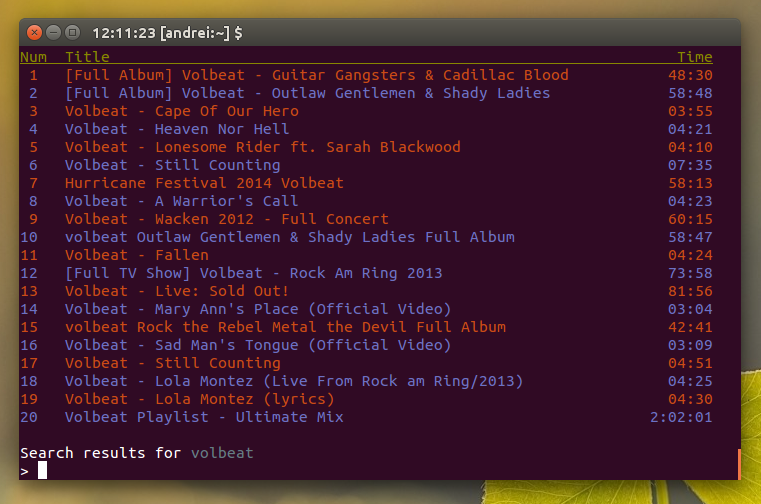
Searching for music / videos using mps-youtube is as easy as adding "." or "/" in front of the search terms (without the quotes). For instance, to search for Volbeat, you can use:
.volbeat/volbeatYou can navigate to the next / previous page of results by using "n" (next) and "p" (previous).
To play an item, enter its number. You can also play multiple items, for instance, use "1-5" to play items 1 to 5 or "1, 2, 6" to play the first, second and sixth item and so on.

To download an item, use:
d ITEM-NUMBERFor example, to download the 3rd search result, use "d 3" - this displays all the available audio and video formats and lets you choose which to download (see screenshot above). You can also download the best audio (use "da ITEM-NUMBER") or best video (use "dv ITEM-NUMBER"). This works for both searches and playlists.
This is just to get you started so for more information on using mps-youtube, type "h" and then "help TOPIC" (where topic is "basic", "search" and so on) as explained in mps-youtube:

Wednesday, October 14, 2015
mps-youtube Migrates To YouTube API v3, Gets Ubuntu Sound Menu Support
mps-youtube 0.2.4 was released today and with this version, the app was migrated to YouTube API v3. This is an important change because the old v2 API was shut down recently so previous mps-youtube versions no longer work.
Another important change in this release is the addition of MPRIS v2 support, which means that mps-youtube can now make use of Ubuntu's Sound Menu, GNOME Shell Media Player Indicator extension and so on.
Another important change in this release is the addition of MPRIS v2 support, which means that mps-youtube can now make use of Ubuntu's Sound Menu, GNOME Shell Media Player Indicator extension and so on.

mps-youtube is a command line YouTube audio player which supports both local and YouTube playlists (with built-in YouTube search).
By default, the app plays only the audio (it only downloads the audio stream, great for those with limited data plans) however, you can enable video playback from its options and in this case, mpv or mplayer is used to play the videos (other players might work, but only mpv and mplayer are officially supported).
Other mps-youtube features include downloading YouTube audio/video (including 1080p videos) - either single videos or complete YouTube playlists, transcode audio to mp3 and other formats (requires ffmpeg or avconv), optional system notifications as well as many other small but useful features.
mps-youtube 0.2.4
The latest mps-youtube 0.2.4 brings support for Data API v3, an important change because the old v2 API was shut down recently so previous mps-youtube versions no longer work.
Another important change in mps-youtube 0.2.4 is the addition of MPRIS v2 support. This allows integrating mps-youtube with the Ubuntu Sound Menu, GNOME Shell Mediaplayer Indicator extension and others.
To get this to work with the Ubuntu Sound Menu (used by default in Ubuntu w/ Unity and Xubuntu), you need to install a desktop file for mps-youtube. To speed things up, I created a desktop file for you and to install it, along with an YouTube icon, simply use the following commands (or download it from HERE and install it manually):
sudo apt-get install wget
cd /tmp
wget https://github.com/hotice/failsdownloads/raw/master/mps-youtube.tar.gz
tar -xvf mps-youtube.tar.gz
sudo cp /tmp/mps-youtube/youtube.png /usr/share/pixmaps/
sudo desktop-file-install /tmp/mps-youtube/mps-youtube.desktop
Then, start playing a song/video in mps-youtube and it should show up in the Ubuntu Sound Menu:

For GNOME Shell Mediaplayer Indicator extension, mps-youtube doesn't need a desktop file and it should work without any tweaks:

Besides these changes, mps-youtube 0.2.4 includes bug fixes:
- Fix issue with rate-limiting in "album" command
- Fix display issue with small terminal width
For how to install and configure mps-youtube, see THIS article.
Tuesday, October 6, 2015
Download Torrents And YouTube Videos With FrostWire
FrostWire is a free, open source Java downloader, BitTorrent client and media player, which comes with a built-in multi-tracker search (like TPB, Yify, Mininova, etc.) as well as YouTube and SoundCloud search/download support. The application is available for Linux, Windows, Mac OS X and Android.

The app is not new but I've never covered it on failsdownloads and after receiving a review request and trying it recently, I decided it deserves an article here since it's a really good app, despite being a bit bloated.
Probably the most important FrostWire feature is its ability to search multiple BitTorrent trackers in the same time as well as YouTube, SoundCloud and Archive.org. The search results are filtered by file type audio, video, images, documents or apps so the results don't get cluttered with stuff you don't need which is much needed, considering the multiple sources the app is able to search:

"FrostWire will connect to all the major BitTorrent indexes of the internet and pre-fetch torrents (via the libtorrent DHT or via HTTP if it can't find it on the DHT), it will then index locally all the available metadata that's indexed by the torrent file, as the user searches, the local index gets better and better to yield richer and instant results".
At the time I'm writing this article, FrostWire supports searching and downloading content from TPB, FrostClick, KAT, Yify, BitSnoop, Extratorrent, Mininova, Monova, TorLock and BTJunkie BitTorrent trackers / search engines as well YouTube, SoundCloud and Archive.org.
For YouTube, the app allows downloading the audio only or the complete video and you can choose which format to download (1080p video downloads are supported).
Another very important FrostWire feature is the ability to play audio and video while downloading from the BitTorrent networks and previewing the content from YouTube or SoundCloud before downloading:

For this, the app comes with a built-in media player but you can also use external players such as VLC. For YouTube and SoundCloud previewing though, only the internal player is supported or at least that was the case in my test.
There's even an integrated media library which organizes your downloads in various categories (audio, video, images, programs, books/docs) and there's also a huge list of online radio stations available and an option to add more stations (one note though: many of the stations I've tried didn't work):

And finally, the last major feature available in FrostWire is the ability to easily share content with your friends or between multiple devices (such as your desktop and Android device) - for how to send files from an Android device to a desktop, see THIS video. It's important to mention that once you share a file, it's available to everybody on the BitTorrent network so keep this in mind before using this feature.
Under the hood, FrostWire uses frostwire-jlibtorrent, a swig Java interface for libtorrent for the BitTorrent part and MPlayer for media playback, along with H2 database and Lucene indexes for the search. For more information, see its GitHub page.
The application was updated recently (v6.1.3) with lots of fixes (including a fix for saving downloads on external drives), Windows 10 compatibility, fixed Soundcloud search and download, resumable Archive.org downloads as well as important changes on the way the BitTorrent engine works which allowed simplifying seeding settings.
Download FrostWire
Download FrostWire - binaries available for Linux (64bit only): deb, rpm and generic, Windows, Mac OS X and Android as well as source
Report any bugs you may find in the desktop version HERE.
Thanks to Giancarlo
Command Line YouTube Player `mps-youtube` Gets YouTube Playlists Support, More
mps-youtube, a command line tool to search, play and download YouTube videos with local playlists support, has received quite a few changes since our previous article about it. The most important new feature is YouTube playlist support: you can now search and play YouTube playlists.
 |
| Searching YouTube playlists in the latest mps-youtube |
Unfortunately, mps-youtube doesn't yet support downloading complete YouTube playlists, but hopefully this will be added in a future release.
Here are the most important changes in mps-youtube since our previous article (current version: 0.1.38)
Here are the most important changes in mps-youtube since our previous article (current version: 0.1.38)
- added prompt to mux audio on m4v download;
- faster opening of audio streams;
- added "pls <query>" command to search for YouTube playlists;
- added "pl <playlist url>" command to open YouTube playlist url;
- added "dlurl <YouTube url>" command for directly downloading a YouTube video;
- added "playurl <YouTube url>" command for directly playing a YouTube video;
- added "url <YouTube url>" command for retrieving a specific YouTube video;
- added "i<number>" for YouTube playlist information display;
- added stream url preloading for first item of opened YouTube playlists
- same playlist file is now shared between Python2.7+ and Python3+ (was separate);
- list user uploads using "user <username>";
- other changes and many bug fixes.
 |
| YouTube playlist loaded in mps-youtube |
Install mps-youtube
Debian update: mps-youtube is now available in Debian unstable thanks to Zlatan Todoric: mps-youtube so install it using:
sudo apt-get install mps-youtubeFor Ubuntu, see below.
1. mps-youtube can be installed using pip. To Install pip in Ubuntu, use the following command:
sudo apt-get install python3-pip2. Then install mps-youtube using pip:
sudo pip3 install mps-youtube3. You'll also need mplayer, which you can install using the following command:
sudo apt-get install mplayerTo upgrade mps-youtube, use this command:
sudo pip3 install mps-youtube --upgradeArch Linux users can install mps-youtube via AUR.
If you want to use this with MPV, you can install it in Ubuntu (Saucy and Trusty) by using THIS PPA.
mpsyt is also available for Windows and Mac OS X. See its GitHub page for installation instructions.
Usage
Start mps-youtube by typing the following command in a terminal:
mpsytTo search for a video on YouTube, prefix your search with either "." or "/". Or, search for an YouTube playlist by using the command below:
pls <query>You can see all the available commands by typing "h" in the mpsyt shell.
More on using pms-youtube in our previous article.
For bug reports, feature requests, etc., see the mps-youtube GitHub page.
For bug reports, feature requests, etc., see the mps-youtube GitHub page.
New Command Line YouTube Player And Downloader With Local Playlists Support: mps-youtube
youtube-dl is probably the most popular command line YouTube (and not only) downloader for Linux but there's a new tool that tries to do things a bit differently.

mps-youtube is a new tool which, besides being able to download YouTube videos (either the whole video or just the audio), can also search and play YouTube videos and create local playlists, all from the command line.
By default, this is basically a YouTube audio player (and downloader), but you can enable (external) video playback from its options.
By default, this is basically a YouTube audio player (and downloader), but you can enable (external) video playback from its options.
The tool uses mplayer for streaming but it can also use mpv, a relatively new mplayer fork.
Update: the tool was initially called "pms-youtube" but that was quite an unfortunate name :) so the tool was renamed to mps-youtube.
Installation
Debian update: mps-youtube is now available in Debian unstable thanks to Zlatan Todoric: mps-youtube so install it using:
sudo apt-get install mps-youtubeFor Ubuntu, see below.
1. mps-youtube can be installed using pip. To Install pip (Python3 version) in Ubuntu, use the following command:
sudo apt-get install python3-pip2. Then install mps-youtube using pip:
sudo pip3 install mps-youtube3. You'll also need mplayer, which you can install using the following command:
sudo apt-get install mplayerLater on, if you want to upgrade mps-youtube, use this command:
sudo pip3 install mps-youtube --upgradeArch Linux users can install mps-youtube via AUR.
If you want to use this with MPV, you can install it in Ubuntu (Saucy and Trusty) by using THIS PPA.
mpsyt is also available for Windows and Mac OS X. See its GitHub page for installation instructions.
Usage
To run mps-youtube, use the following command:
mpsytTo search for a video on YouTube, prefix your search with either "." or "/".
Example: to search for "pantera", use:
.panteraThen, to play an item from the search results, enter its number. You can also use combinations, for instance use "1,2,3" to play items 1, 2 and 3, or "1-5" to play items 1 to 5. You can also use "shuffle" or "repeat" along with the track numbers, for example "shuffle 1-4".
To download an item, use:
d ITEM-NUMBERBy default, mps-youtube will only play (and download) the audio. To view (and optionally to download) the video instead, use this command:
set show_video trueBy default, the tool uses mpv if found and if it's not installed, it uses mplayer. If you want to switch to mplayer, use this commands:
set player mplayerTo switch to mpv, use these commands:
set player mpvYou can find out all the available commands by simply entering "h":
Note: More documentation is available
    at https://github.com/np1/mps-youtube

Searching
You can enter a search term to search whenever the program is
    expecting text input. Searches must be prefixed with either
    a . or / character.

When a list of items is displayed, you can use the following
    commands:

Downloading
d 3 to download item 3

Selecting Items
all to play all
1 2 3 to play items 1 2 and 3
2-4 6 7-3 to play items 2 3 4 6 7 6 5 4 3
3-6 9-12 shuffle to play selected items in random order
3-6 9-12 repeat to play selected items continuously

Manipulating Items
rm 1 3 to remove items 1 and 3.  Also use rm 1 2 5-7 to
    remove a range
rm all to remove all items
sw 1 3 to swap the position of items 1 and 3
mv 1 3 to move items 1 to position 3

Playlist commands
add 1 2 5-7 to add items 1 2 5 6 and 7 to the current playlist.
add 1 2 3 <playlist_name> to add items 1,2,3 to a saved
    playlist.  A new playlist will be created if the given name
    doesn't already exist.
vp to view the current playlist (then use rm, mv and sw to
    modify it)
ls to list your saved playlists
open <playlist_name or ID> to open a saved playlist as
    the current playlist
view <playlist name or ID> to view a playlist (leaves
    current playlist intact)
play <playlist name or ID> to play a saved playlist
    directly
save or save <playlist_name> to save the currently
    displayed items as a stored playlist on disk
mv <old_name or ID> <new_name> to rename a playlist
rmp <playlist_name or ID> to delete a playlist from disk

q to quitDownload And Convert YouTube Videos With ClipGrab
youtube-dl is great for downloading YouTube videos, but if you don't like the command line, you might want to give ClipGrab a try. The application is not new but I never got to cover it on failsdownloads.
ClipGrab is an open source tool to download and convert videos from YouTube, Vimeo, Dailymotion and more, available for Linux, Mac and Windows.

ClipGrab features:
- download videos (in HD as well as standard definition) from: YouTube, Vimeo, Dailymotion, Metacafe, Youku.com, myspass.de, myvideo.de and clipfish.de as well as other websites for which it has a generic downloader;
- integrated YouTube video search functionality;
- automatically convert downloaded videos to mpeg4, mp3, wmv and ogg theora/vorbis;
- automatically add metadata (ID3 tags) to the converted mp3 files;
- supports YouTube DASH videos (automatically merges the sound and video files) so it can download 1080p videos;
- download age-restricted YouTube videos that require login (a popup is displayed in such cases, asking for your username and password);
- desktop notifications;
- proxy support.
 |
| ClipGrab allows searching for videos on YouTube directly from its UI |
The application also features clipboard monitoring: it monitors the clipboard and when a video link is detected, it automatically adds it to its downloads or ask if you want to download it.
Overall, ClipGrab works great, but there are 2 Unity-specific bugs which I've encountered in my test:
- only the "Always download" clipboard feature works (but it doesn't automatically download the video - it only adds it to the downloads tab) because if you set ClipGrab to "Always ask", when a video is detected you must click on the notification to download the video, and the default Unity notifications don't support this;
- A missing icon symbol shows up on the panel.
Install ClipGrab in Ubuntu / Linux Mint
ClipGrab has a PPA but it wasn't updated in a while so to install the latest ClipGrab in Ubuntu 14.04 / Linux Mint 17, you can use GetDeb:
1. Firstly, download and install THIS deb package - it will automatically add the GetDeb repository.
2. Linux Mint (17) only: make sure "trusty" is used for the GetDeb repository source and not "qiana", by running the following command:
sudo sed -i 's/qiana/trusty/g' /etc/apt/sources.list.d/getdeb.list3. Install ClipGrab:
sudo apt-get update
sudo apt-get install clipgrab libav-tools
Arch Linux users can install ClipGrab via AUR.
For other Linux distributions (as well as Ubuntu users who aren't running the latest Ubuntu 14.04), download ClipGrab from its homepage (binaries available for Linux, Windows and Mac as well as source code).
Subscribe to:
Posts (Atom)